

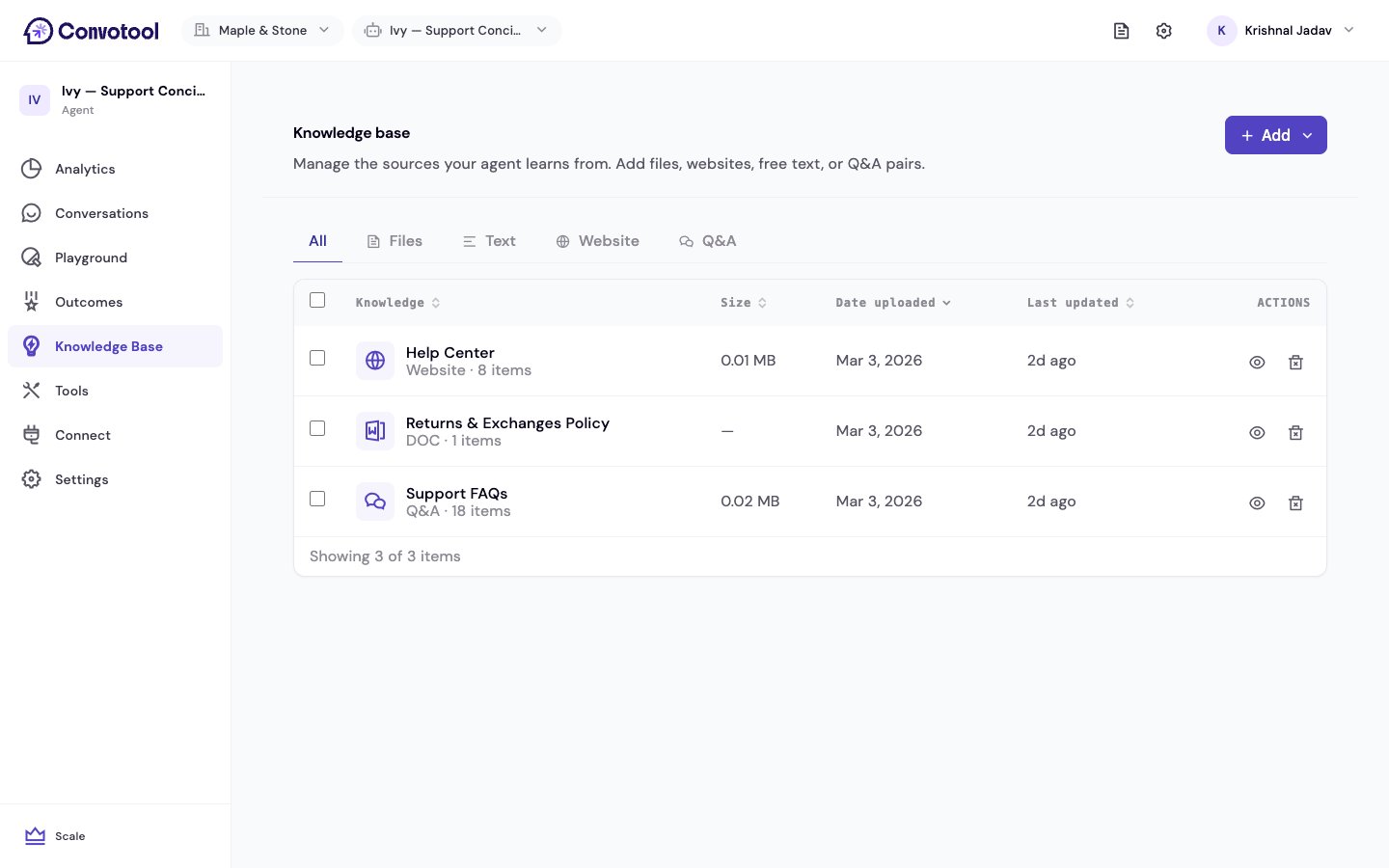
Browse and filter
Sources appear in a table. Use the filter tabs to narrow by type — All, Files, Text, Website, or Q&A — and sort by any column:- Knowledge — the source name
- Size — how much storage it uses
- Date uploaded
- Last updated
Processing status
Each source shows a status:Larger files and big website crawls take longer to process. Refresh the page if a source has been processing for a while.
Inspect a source
Click the view icon on any row to open a details panel showing its type, status, number of items, size, source URL (for websites), and when it was added and last updated. Website and file sources list their individual items so you can see exactly what was learned.Delete sources
- Delete one — click the delete icon on a row and confirm. This permanently removes the source and everything your agent learned from it.
- Delete several — select rows with their checkboxes (or Select all), then click Delete. Confirm to remove them all at once.
Knowledge base limits
See how storage and token usage are measured.