

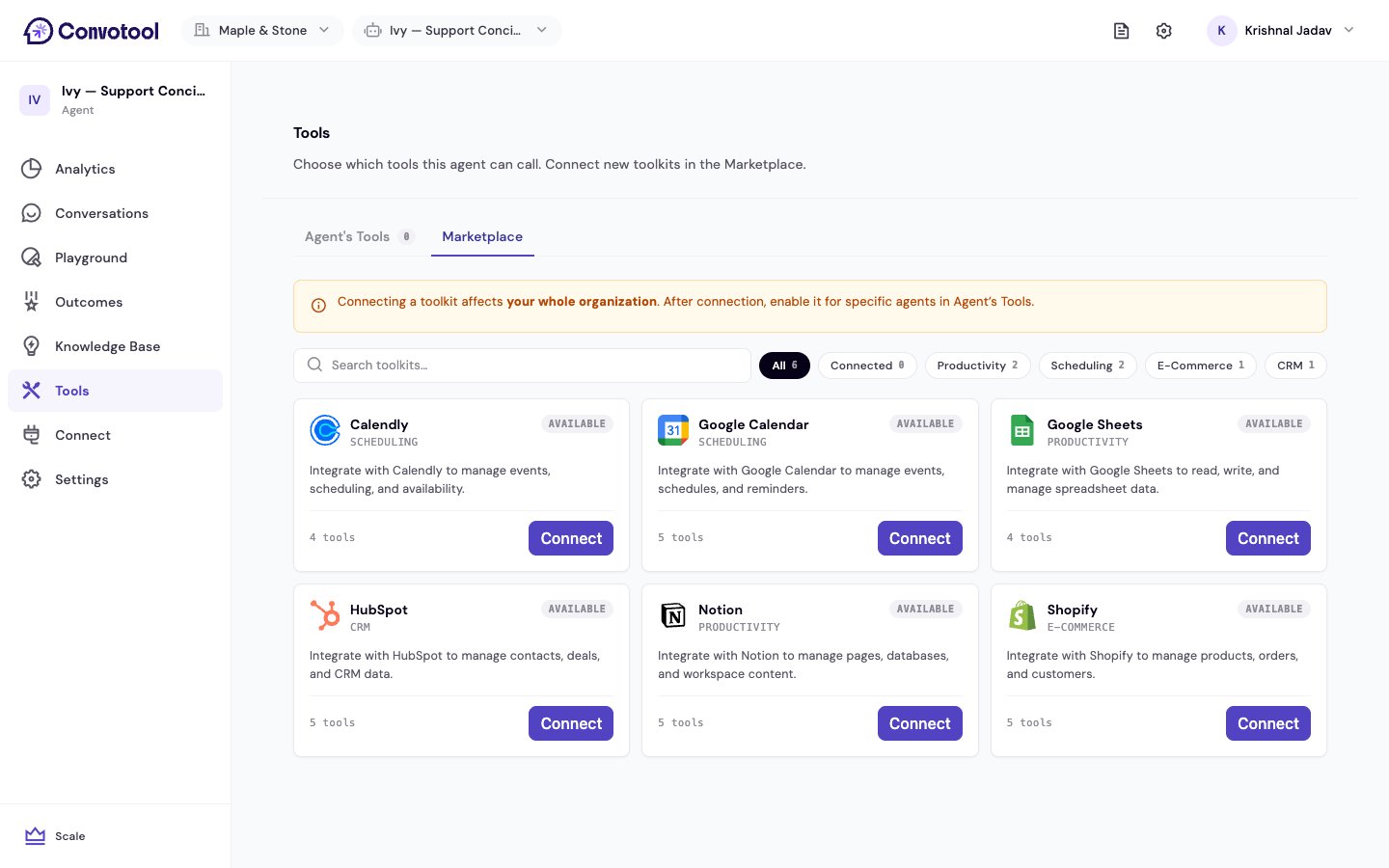
The Tools page
Select your agent and click Tools in the sidebar. The page has two tabs:- Marketplace — browse and connect available toolkits for your organization.
- Agent’s Tools — choose which connected tools this agent can use (see Agent Tools).
Browse the Marketplace
The Marketplace shows every toolkit you can connect. Each card shows the toolkit’s name, category, a short description, and its connection status. To find one:- Search by name, description, or category.
- Filter by category — toolkits are grouped into Productivity, E-commerce, CRM, Scheduling, Communication, and Dev Tools.
- Filter to Connected to see only what’s already set up.
Connect a toolkit
1
Open the Marketplace
On the Tools page, switch to the Marketplace tab.
2
Connect
Click Connect on a toolkit. An authorization window opens for you to sign in and grant access. ConvoTool confirms the connection when you’re done.
3
Enable it for an agent
Connecting makes the toolkit available org-wide. Switch to Agent’s Tools to turn it on for this agent.
Connection status
To remove a toolkit, click Disconnect. Agents using its tools will lose access.
Next: Agent Tools
Choose which connected tools each agent can use.