

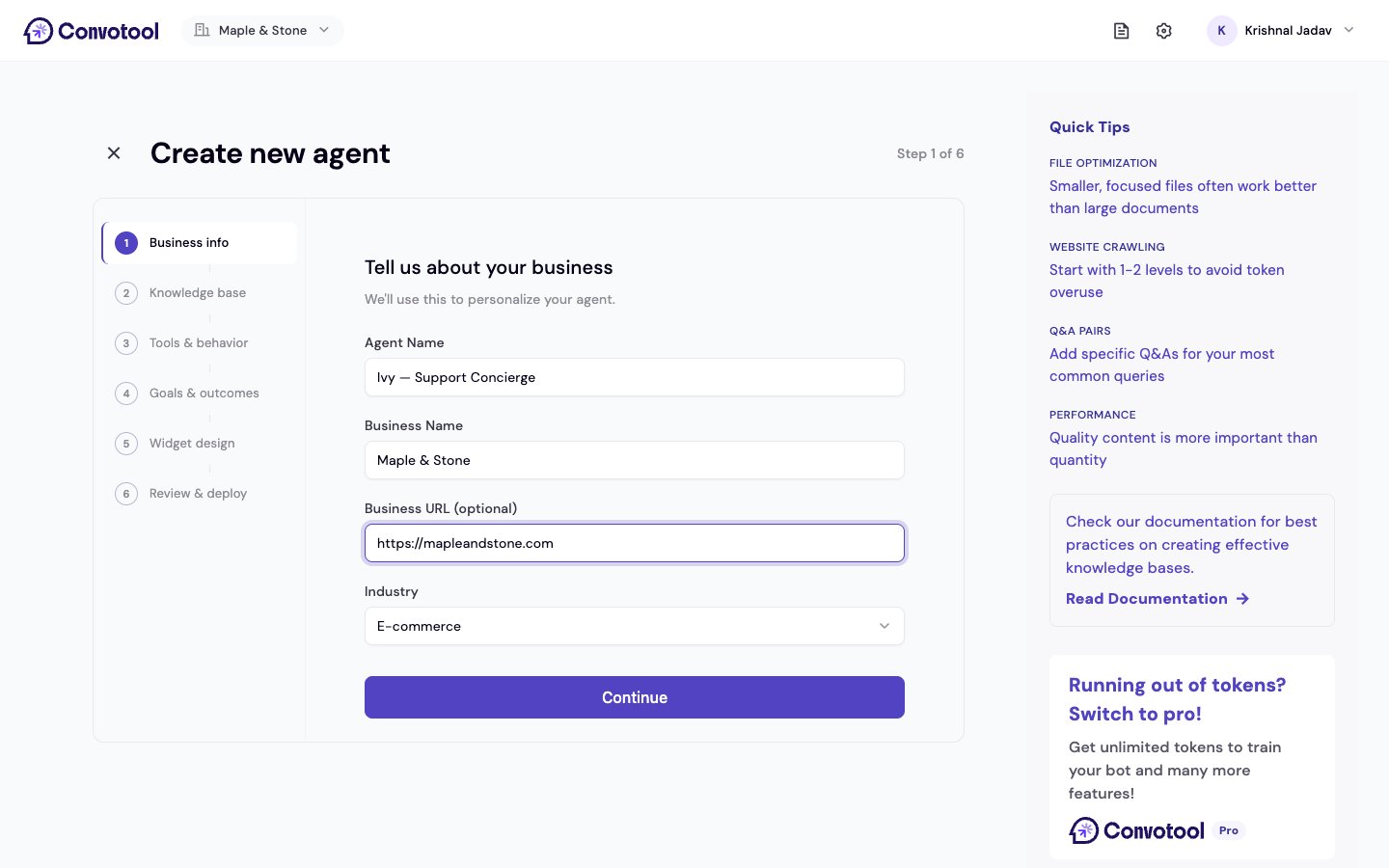
Start the wizard
From your dashboard, click Create Agent. You can start from scratch or pick a template that pre-fills the wizard with settings for a common use case (like lead qualification or booking).Step by step
1
Business info
Tell ConvoTool about your business: agent name, business name, business URL, and industry. Your agent is created as soon as you continue, so the next steps have something to attach to.
2
Knowledge base
Add the content your agent learns from — upload files and add website URLs. A usage bar shows how much of your storage you’ve used. Click Train Agent to process what you’ve added. You can always add more later from the Knowledge Base page.
3
Tools & behavior
This step has two parts:
- Tools — connect and choose toolkits so your agent can take actions. Templates recommend tools that fit the use case.
- Behavior — set the conversation language, the agent instruction (system prompt), a response tone (from very formal to very casual), and guardrails. Under Scope & restrictions you can let the agent collect contact details (and choose which: name, email, phone, company), allow file uploads, and keep it on-topic. Set escalation to hand off to a human after a number of failed attempts.
4
Goals & outcomes
Define what success looks like: a goal statement, a goal type, an optional conversation time limit, and the outcomes the agent should record (Won, Lost, or Need help). See Goals & outcomes for details.
5
Widget design
Make the chat widget match your brand. Paste your website URL and Generate Theme for an automatic color match, or set the primary color, welcome message, and widget position yourself. You can skip this and refine it later in Chat interface settings.
6
Review & deploy
Review a summary of everything you configured, then click Create Agent. Your goal statement must be filled in before you can deploy. When you’re done, you land in the Playground to test your new agent.
After creation
Your agent now appears on your dashboard. From here you can:- Test it in the Playground before deploying.
- Fine-tune it in Agent settings — including the AI model and temperature.
- Add more knowledge in the Knowledge Base.
- Embed it on your website from the Connect page.
Next: Configure Agent Settings
Fine-tune your agent’s behavior, appearance, and security.