

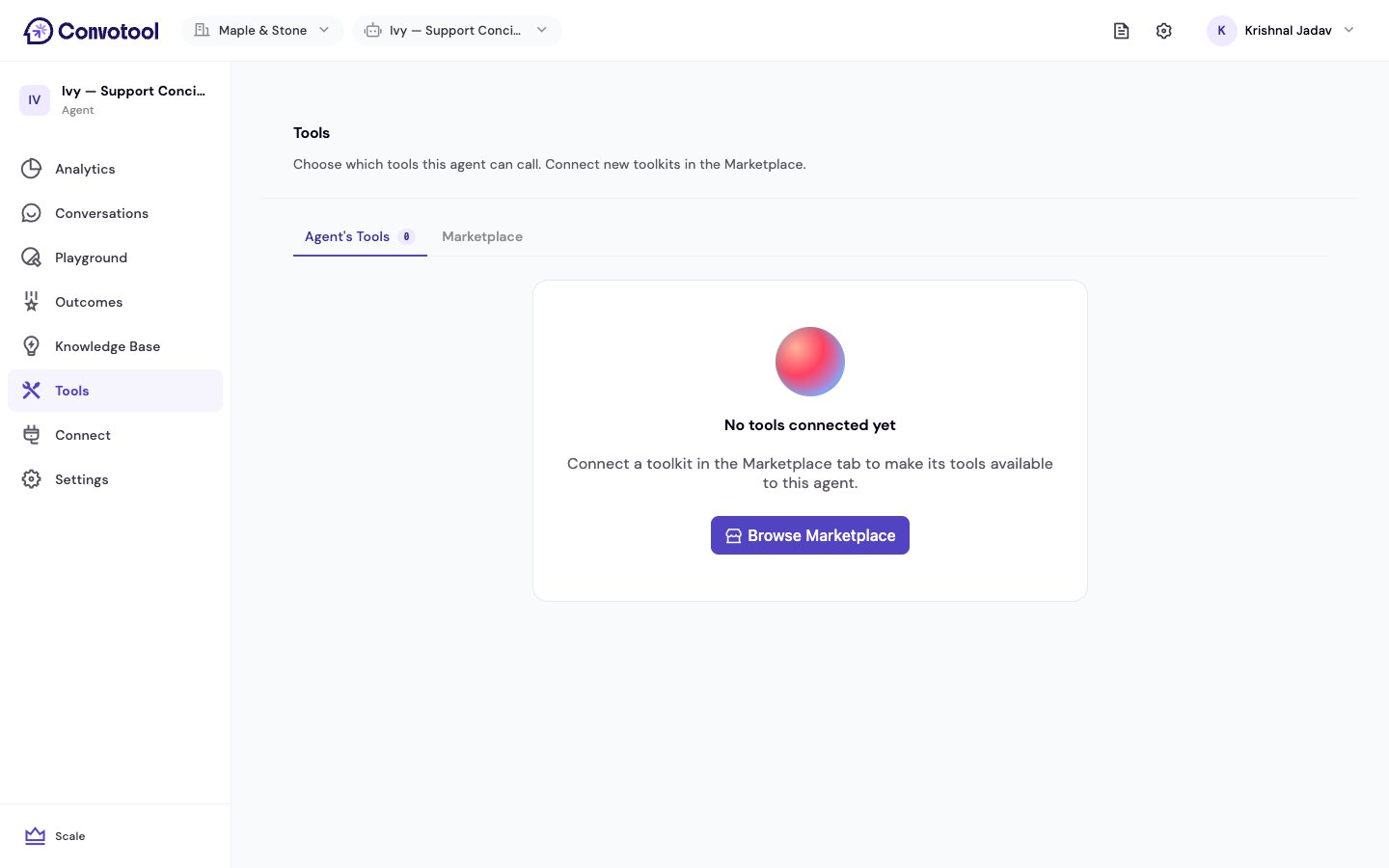
Enable tools for an agent
1
Open the Agent's Tools tab
Select your agent, click Tools in the sidebar, and stay on the Agent’s Tools tab. It lists every toolkit your organization has connected.
2
Turn a toolkit on
Flip the toggle to give this agent access to that toolkit’s tools.
3
Pick individual tools (optional)
Click Configure on an enabled toolkit to choose exactly which of its tools the agent can use. Use Select all or Deselect all to move quickly.
4
Save your changes
A save bar appears at the bottom when you have unsaved edits. Click Save changes to apply them, or Discard to revert.
If no toolkits are connected yet, you’ll see a prompt to Browse Marketplace. Connect a toolkit there first — see Connect Toolkits.
How your agent uses tools
When a visitor asks for something that requires an action (like “book me a call next week”), the agent uses its enabled tools to carry it out. It decides when a tool is relevant based on the conversation. Completed tool actions are recorded on the Outcomes page.Next: Manage your team
Invite team members and assign roles.