

How It Works
1
Open your Knowledge Base
Select your agent and click Knowledge Base in the sidebar.
2
Enter a starting URL
Choose the website option and enter a URL. ConvoTool crawls the pages it can reach from there — by default up to 2 levels deep and 100 pages.
3
Watch the crawl and pick pages
As it runs, you’ll see a live count of pages found and processed, with each discovered page’s title and word count. Remove any pages you don’t want, and cancel the crawl at any time.
4
Save
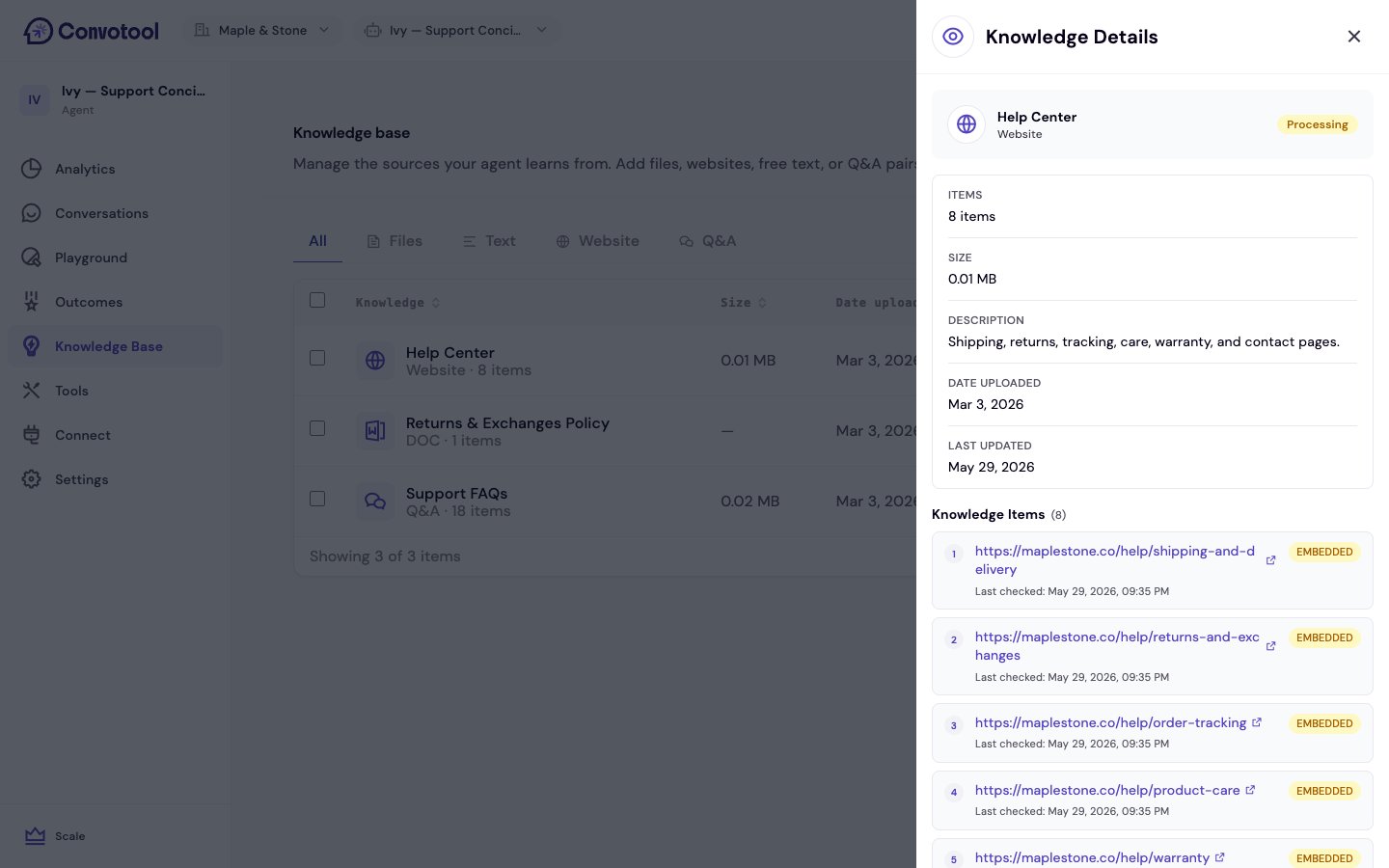
Click save to add the remaining pages to your knowledge base as a single website source.
What Gets Extracted
ConvoTool pulls the main content from each page — headings, paragraphs, lists, and tables. It automatically filters out navigation menus, footers, ads, and other non-content elements.Tips for Best Results
- Start with your most important pages — FAQ pages, product pages, and help articles work best.
- Check the results — After scraping, review what was extracted in your knowledge base to make sure it looks right.
- Combine with other sources — Website scraping works great alongside uploaded documents and Q&A pairs for complete coverage.
Website scraping extracts content as it appears at the time of the crawl. If you update your website, scrape the updated pages again to keep your knowledge base current.
Next: Add Text
Paste or type content directly into your knowledge base.