

Open the inbox
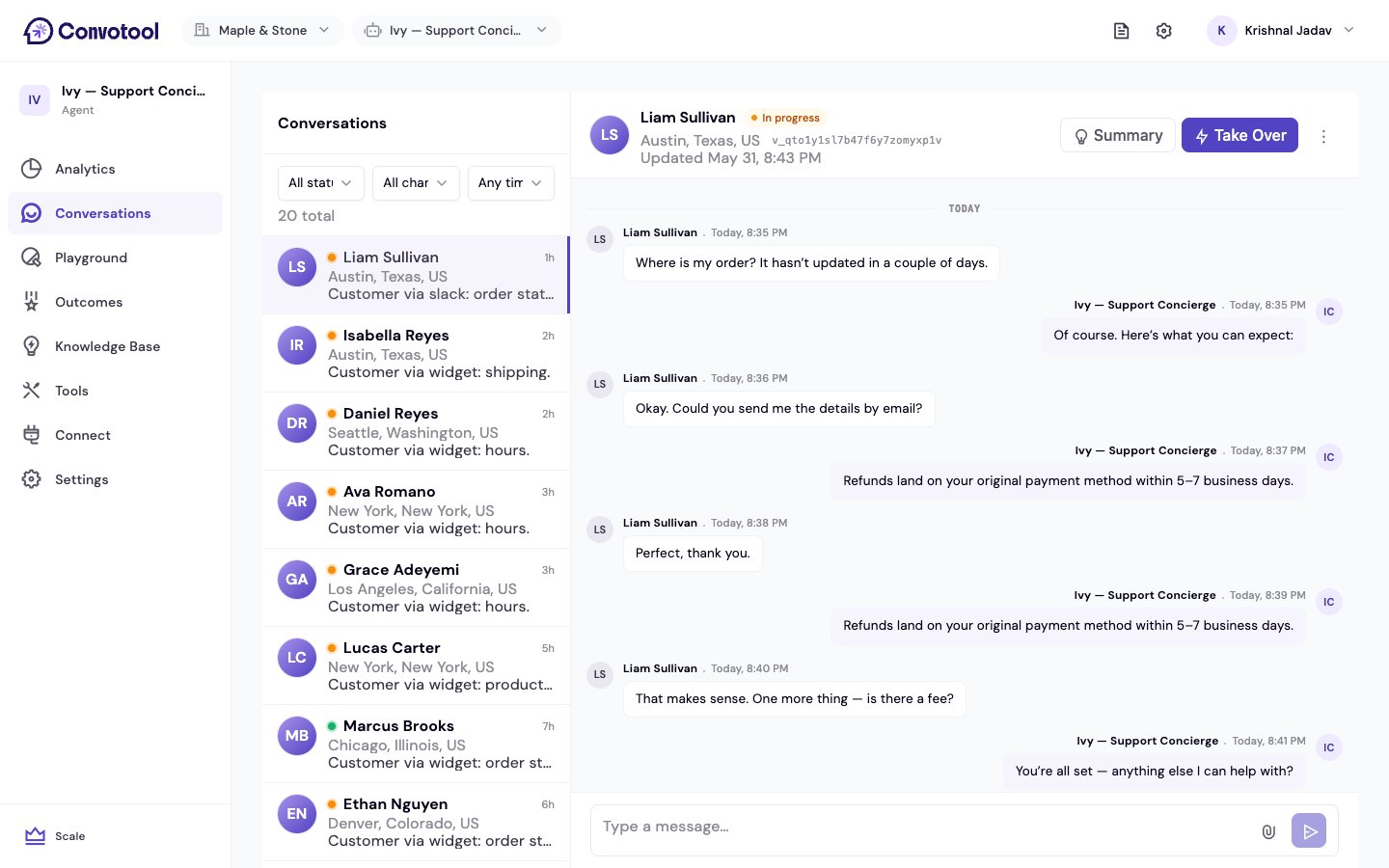
Select your agent from the dashboard and click Conversations in the sidebar. The inbox is a split view — the conversation list on the left, the full transcript on the right.The conversation list
Each row shows the visitor’s name (or Anonymous), their location, a short preview, and how long ago the conversation happened. Unread conversations appear in bold. The list loads more conversations as you scroll.Filters
A filter bar sits above the list:
The bar shows how many conversations match, and a Clear filters action resets them.
Reading a transcript
Click any conversation to open its full transcript. The header shows the visitor’s name, status, location, participant ID, and when the conversation was last updated. Messages are grouped by sender and separated by day dividers (Today, Yesterday, and dates), with visitor and agent messages styled distinctly.Conversation statuses
What you can learn
Reviewing conversations regularly helps you:- Spot gaps — find questions the agent answers poorly, then add that content to your Knowledge Base.
- Check accuracy — confirm the agent gives correct, helpful answers.
- Understand customers — see what your visitors care about most.
- Refine behavior — improve your system prompt based on real conversations.
Next: Analytics dashboard
See metrics and trends across all your conversations.