

Connect Slack
1
Open the Connect page
Select your agent, click Connect in the sidebar, and find Slack in the Messaging section.
2
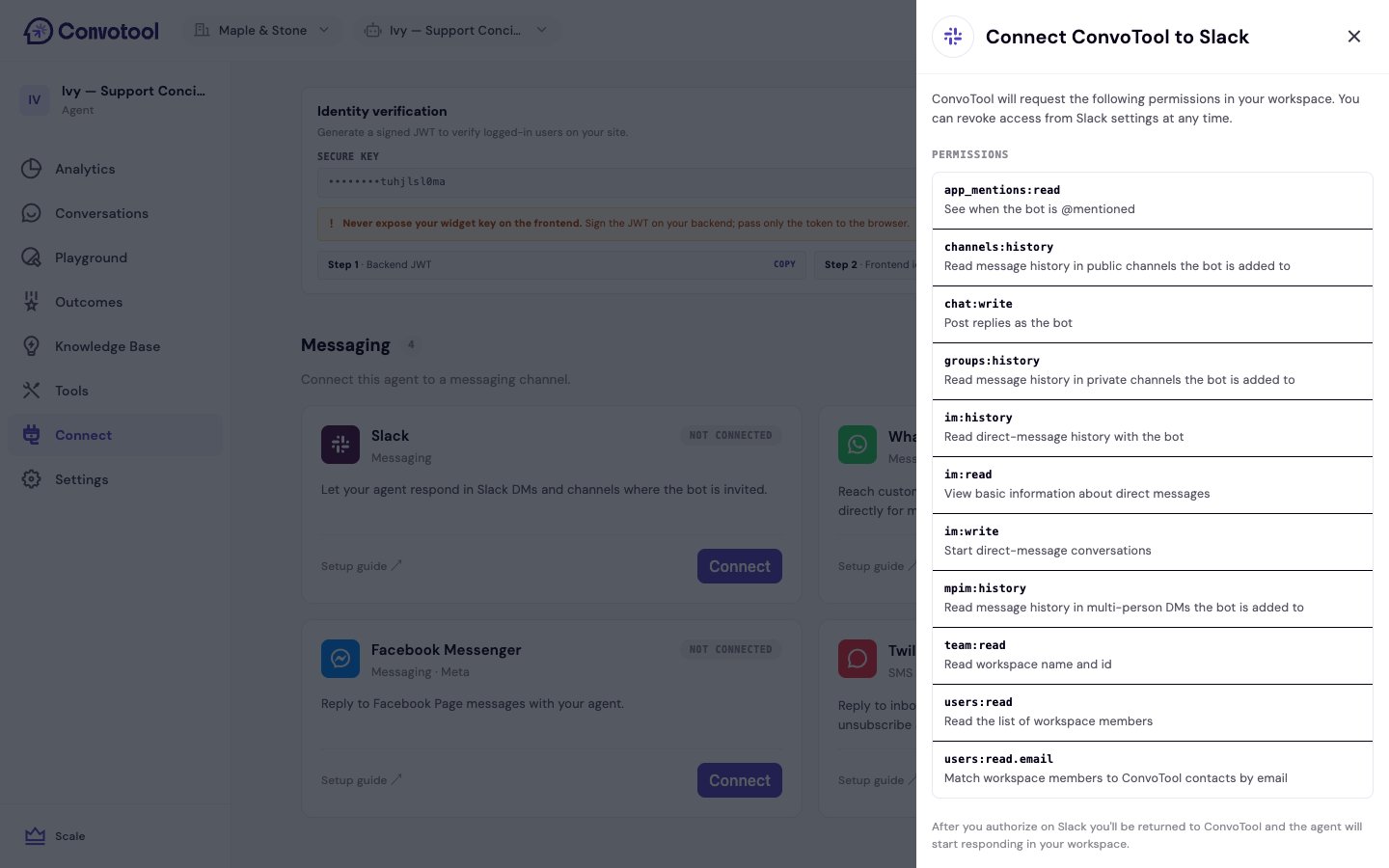
Review the access ConvoTool requests
Click Connect. ConvoTool shows the Slack permissions it will request before redirecting you.
3
Authorize in Slack
You’re taken to Slack to pick a workspace and approve the installation. After approving, you’re returned to ConvoTool.
4
Invite the bot to channels
The agent already handles DMs. To have it answer in a channel, invite the bot to that channel in Slack and @mention it.
Permissions ConvoTool requests
After connecting
The Slack card shows the connected workspace name. The agent now replies to:- Direct messages sent to the bot
- Messages in channels where the bot is invited and @mentioned
Each Slack workspace can be linked to one agent. If the workspace is already connected to another agent, ConvoTool prompts you to Replace and connect.
Next: WhatsApp Business
Connect your agent to WhatsApp through Meta.