

Connect WhatsApp
1
Open the Connect page
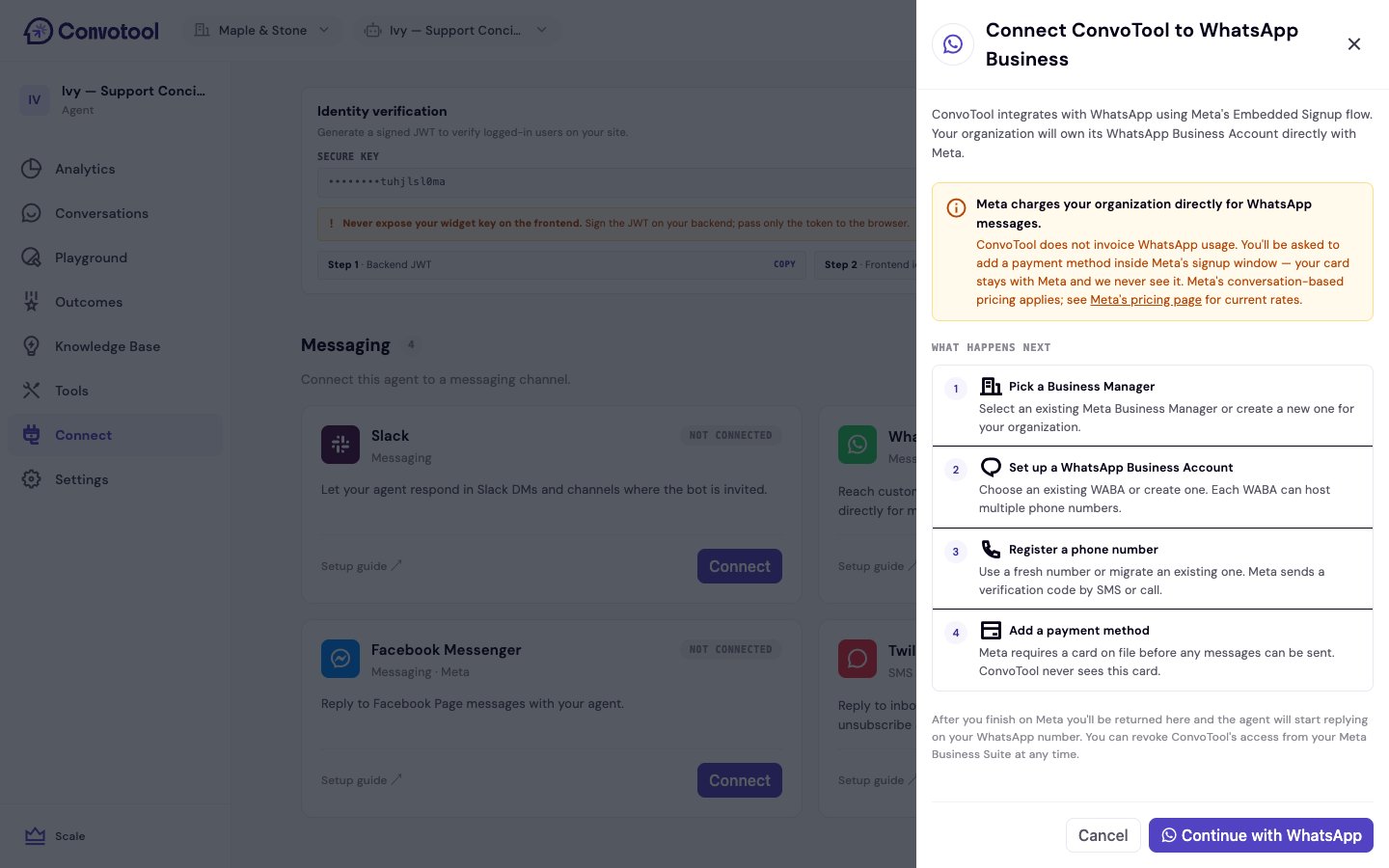
Select your agent, click Connect in the sidebar, and find WhatsApp Business in the Messaging section.
2
Start Meta's Embedded Signup
Click Connect, review the overview, then Continue with WhatsApp. A Meta window opens to guide you through setup.
3
Complete the four Meta steps
Inside Meta’s window you’ll:
- Pick a Business Manager — select an existing Meta Business Manager or create one.
- Set up a WhatsApp Business Account (WABA) — choose or create one. Each WABA can host multiple phone numbers.
- Register a phone number — use a fresh number or migrate an existing one. Meta sends a verification code by SMS or call.
- Add a payment method — Meta requires a card on file before any messages can be sent.
4
Return to ConvoTool
After you finish on Meta, you’re returned to ConvoTool and the agent starts replying on your WhatsApp number.
After connecting
The WhatsApp card shows your display name, phone number, WABA ID, and Phone Number ID. If the card shows Payment required, Meta needs a valid payment method — resolve it in your Meta Business Manager to restore messaging. A Reauth required state means you need to reconnect.Each WhatsApp phone number can be linked to one agent. If the number is already connected to another agent, ConvoTool prompts you to Replace and connect. You can revoke ConvoTool’s access from your Meta Business Suite at any time.
Next: Facebook Messenger
Answer messages sent to your Facebook Page.