

Setup
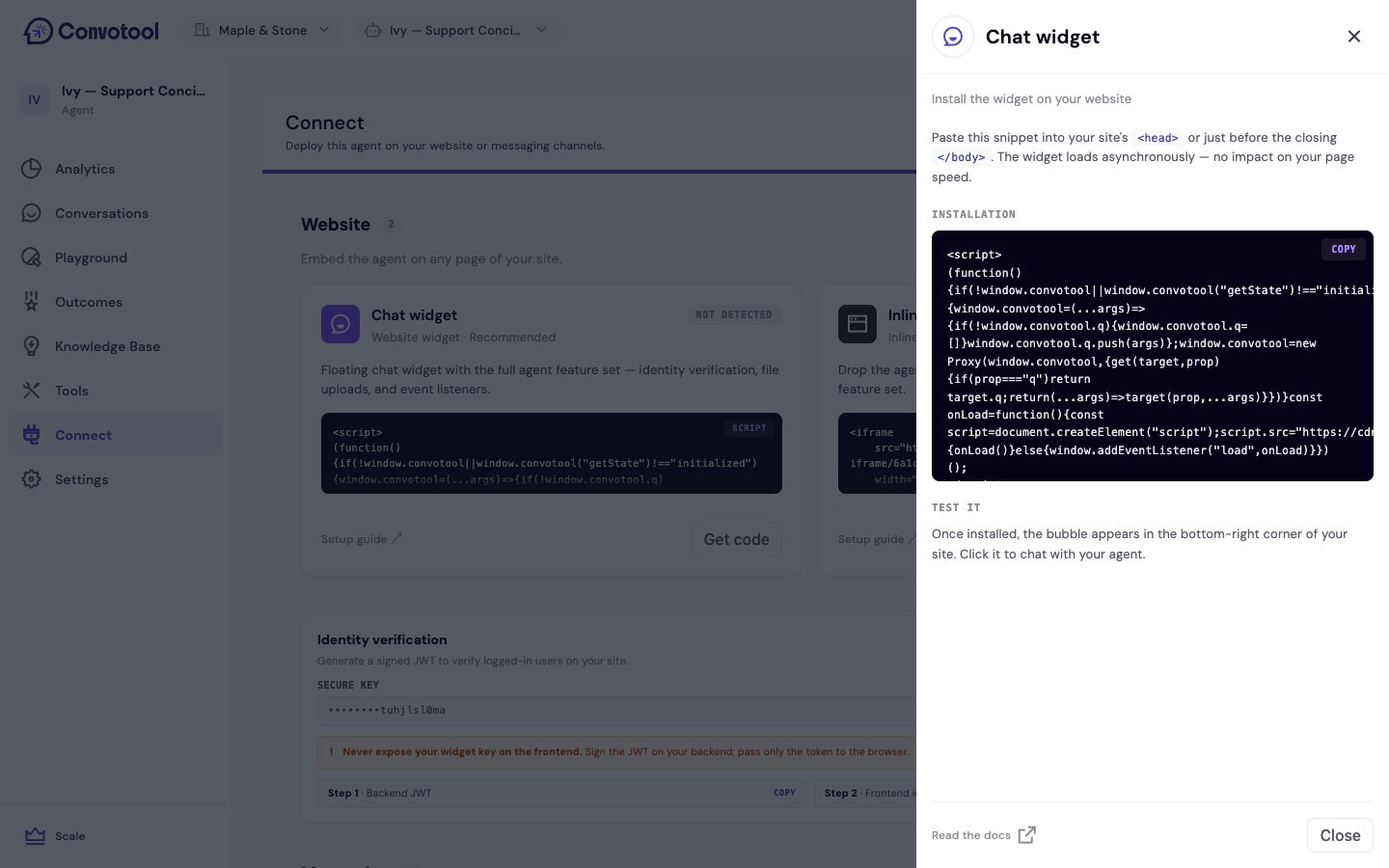
Copy the iframe code from the Connect page (Website section) and paste it wherever you want the chat to appear. It looks like this, with your agent ID and organization ID already filled in:Adjust the
width, height, and min-height to fit your layout. The iframe reads the agent from its URL path and the organization from the orgId query string — copy the snippet from Connect rather than building the URL by hand.When to use the iframe
- Dedicated support pages — a full- or half-page chat experience on your help center.
- Internal tools — embed the agent inside a dashboard or admin panel.
- Landing pages — place the chat prominently next to product information.
Iframe vs. chat popup
The iframe is just the chat surface. Some features need the chat popup because they rely on its JavaScript API:Next: Identity Verification
Securely identify users who chat with your agent.